
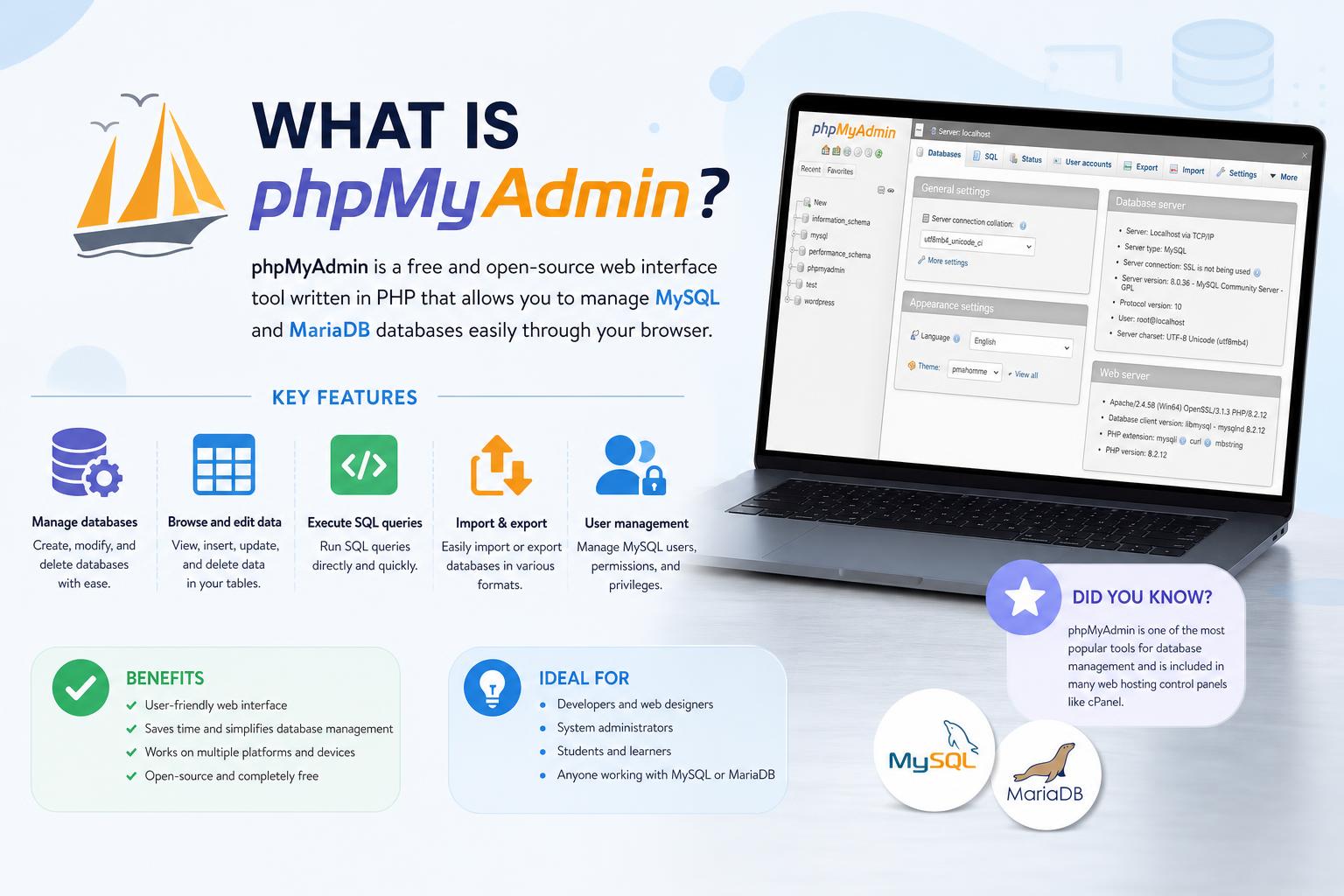
- phpMyAdmin offers a robust, web-based interface for managing MySQL and MariaDB databases, simplifying complex tasks for users of all skill levels.
- The tool supports advanced data manipulation, graphical query building, user and privilege management, and seamless import/export in multiple formats.
- Security best practices—like regular updates and restricted access—are essential to safe phpMyAdmin use, given its popularity as a target.
If you’ve ever managed a website or juggled databases, you’ve likely bumped into the name phpMyAdmin. But what exactly is it, and why does it dominate the world of web-based database management? For seasoned developers and curious newcomers alike, understanding phpMyAdmin isn’t just handy—it’s a game-changer when you’re looking for speed, transparency, and control over your MySQL or MariaDB databases.
In this guide, let’s break down everything you need to know about phpMyAdmin: its origins, main features, practical installation tips, daily tasks, benefits, limitations, and even a peek at worthwhile alternatives. No jargon jungle here—just a clear, conversational walk through the tool that powers some of the internet’s biggest backend databases (with lots of tips you won’t find elsewhere!).
What is phpMyAdmin, and Where Did It Come From?
phpMyAdmin is a free, open-source web application built primarily with PHP and designed to make the management of MySQL and MariaDB databases accessible—even for those not familiar with the command line. You can say goodbye to typing endless SQL commands and, instead, manage data visually via your favorite web browser.
The story behind phpMyAdmin starts in 1998 with Tobias Ratschiller, a consultant who wanted a simpler way to manage MySQL. What began as a personal experiment soon caught fire in the developer community. By 2001, a dedicated team of volunteers took over, forming the phpMyAdmin Project. Today, hundreds of contributors keep it updated, secure, and multilingual (with support for more than 72 languages!).
Why Do So Many People Use phpMyAdmin?
phpMyAdmin is popular for its simple, yet powerful, graphical interface that eliminates the steep learning curve of SQL. Whether you’re a hobbyist or a pro, it opens up a world of convenient data manipulation, user management, and database design—all from your browser.
Its open-source status ensures regular updates and a thriving support community. From web developers running WordPress to database pros tweaking advanced queries, phpMyAdmin has proven to be a flexible tool that easily fits into a wide range of workflows.
Main Features You Get With phpMyAdmin
- Comprehensive Database Management: Create, view, modify, and delete databases, tables, columns, and users—all without writing any SQL (unless you want to!).
- Intuitive Data Manipulation: Insert, update, and delete individual records easily and search for data across single or multiple tables.
- Advanced Query Execution: For power users, phpMyAdmin lets you write and run SQL scripts straight from the graphical interface. You can also save your favorite queries, visualize results as tables or charts, and analyze query performance.
- Data Import and Export: Move data in or out of your database in popular formats like SQL, CSV, XML, JSON, PDF, Word, Excel, and more. This makes backups and migrations a snap.
- User Account and Privilege Management: Easily add, modify, or delete user accounts, set privileges for databases and tables, and enforce granular access controls to protect your data.
- Visual Tools and Schema Layouts: Generate PDF diagrams of your database structure, visualize relationships between tables, and customize the presentation with themes and layouts.
- Server Monitoring and Performance Optimization: Track active processes, monitor network traffic, view server statistics, and optimize tables to keep your database running smoothly.
- Multi-Server Support: Manage several database servers from a single interface—great for development, testing, and production environments.
- Extensive Language Support: With translations into more than 95 languages, phpMyAdmin is accessible globally, making it a truly international tool.
Quick Reference: Most Useful Tasks in phpMyAdmin
- Create or Delete Databases and Tables: Handle database and table creation or deletion with just a few clicks—no SQL required.
- Import and Export Data: Effortlessly migrate data between servers or back up your content for peace of mind.
- Run Complex Queries: Write and execute advanced SQL operations directly within the user interface.
- User Management: Quickly grant, modify, or revoke access rights for specific users, safeguarding your critical data.
What Are the Key Advantages of Using phpMyAdmin?
The most obvious benefit is phpMyAdmin’s ease of use: even database newbies can perform complex tasks that previously required command-line skills. Here are some other standout perks:
- Universal Accessibility: As it runs in your browser, phpMyAdmin lets you manage your database from anywhere—on your PC, laptop, or even from a tablet if you’re brave.
- No More Command Line for Most Operations: The graphical interface means less room for error and a much friendlier learning curve.
- Broad Compatibility: phpMyAdmin works on almost any operating system, web server (Apache, Nginx, etc.), and supports both MySQL and MariaDB right out of the box.
- Integrated Backups and Migrations: Need to move sites or safeguard your data? Simple menu options let you export or import data in multiple formats.
- Community and Documentation: Since phpMyAdmin is so widely used, you’ll always find guides, tips, community support, and regular updates to keep your setup smooth and secure.
- Batch Data Processing: Execute bulk DELETE, UPDATE, or INSERT operations without manual repetition—a huge time-saver!
- Multi-Language Support: Built-in translations and localized interfaces make it a top pick for international teams.
What About the Downsides? Disadvantages and Common Pitfalls
No tool is perfect, and phpMyAdmin has its fair share of cautionary tales:
- Security Risks: Because phpMyAdmin is a web app, it’s a frequent target for automated attacks and exploits. Poorly secured installations (default directory names, weak passwords, outdated software) can expose entire databases. Always update regularly and pay attention to security announcements from the official site.
- Resource Usage: Heavy databases or high traffic can strain server resources—phpMyAdmin sometimes gobbles up more CPU and RAM than expected, slowing down busy websites.
- Complexity Cliff for Beginners: While it lowers the entry barrier a lot, truly understanding advanced features (like triggers, stored procedures, indexing, and permissions) may still be a tall order for total novices.
- Not a Universal Database Tool: If you work with anything outside MySQL or MariaDB (like PostgreSQL, Oracle, or SQLite), phpMyAdmin won’t help. For broader needs, check alternatives like Adminer or commercial desktop clients.
Installation: How to Set Up phpMyAdmin on Your Server
Ready to leverage phpMyAdmin’s magic? Setting it up is straightforward, but you do need to meet a few technical prerequisites:
- A web server: Apache or Nginx are the most common choices.
- PHP (version 5.5 or higher—ideally PHP 7+ for latest updates).
- MySQL or MariaDB server to store your data and handle requests.
- Required PHP extensions: mysqli, mbstring, json, and zip are necessary for full compatibility.
Installation Options:
- Package Managers: On Linux servers, the easiest method is using a package manager:
Debian/Ubuntu:sudo apt install phpmyadmin
CentOS/RHEL:sudo yum install phpmyadmin - Manual Download: Visit the phpMyAdmin official site, download the zip, extract it into your web directory, and configure config.inc.php.
- Bundled Application Suites: If you use XAMPP, WAMP, MAMP, or similar environments, phpMyAdmin often comes pre-installed. Just point your browser to
http://localhost/phpmyadminright after installation.
Securing Your Setup
- Don’t use the default /phpmyadmin directory—rename it.
- Configure strong passwords for all users.
- Restrict access to allowed IP ranges.
- Consider adding an extra authentication layer (e.g., web server authentication or two-factor auth).
- Implement HTTPS for all connections—never manage databases over plain HTTP!
The Day-to-Day: How to Use phpMyAdmin for Common Tasks
Logging In
After installation, fire up your browser and head to your phpMyAdmin URL (like http://yourdomain.com/phpmyadmin or local IP). Enter your MySQL username and password—the same credentials you’d use on the server command line.
- Can’t log in? Check the username and password, ensure the web server and MySQL/MariaDB are running, and verify you have permission to access phpMyAdmin’s directory and scripts. If using a control panel or shared hosting, consult your provider’s docs.
Database Creation and Table Management
- Create a Database: Click the Databases tab, enter a name, select collation/encoding, and click Create.
- Add Tables: Inside your database, click Create table, specify fields (columns), set data types, primary keys, indexes, and more—all with point-and-click simplicity.
Editing, Searching, and Deleting Data
- Insert or Edit Data: Use the Insert tab after selecting a table to add rows, or click Edit next to any record to make changes.
- Delete Records: Select the checkboxes for rows you want to remove and hit Delete—or delete the entire table/database with a single action (be careful!).
- Browse and Search: The Search tab lets you find specific data quickly. For advanced filtering, use custom SQL queries in the SQL tab.
Importing and Exporting Data
- Import: Click the Import tab, browse for your CSV, SQL, or Excel file, and follow prompts. Useful for populating fresh installs, migrating data, or restoring backups.
- Export: Choose entire databases or select tables, pick a format—SQL, CSV, PDF, XML, etc.—and download the result for backup or transfer.
User and Privilege Management
- Manage Users: Head to the Users or User Accounts tab to add, remove, or change users and their permissions. You can even restrict certain users to specific databases or limit their actions for extra security.
Running SQL Queries
- Execute SQL: Use the SQL tab to paste or write queries—from basic SELECTs to complex joins, triggers, stored procedures, or maintenance scripts.
- Save Favorite Queries: For common operations, save your SQL commands for future use—the tool will remember them for you.
Practical Troubleshooting: What Can Go Wrong, and How to Fix It?
You might encounter issues during installation or daily use. Here are some common problems and their solutions:
1. Can’t Access phpMyAdmin?
- Check the directory location: Ensure phpMyAdmin is in your web server’s document root and that permissions are correct.
- Make sure the web server is running: If using Apache, Nginx, etc., restart it and check firewall rules.
- Double-check your URL: Common mistakes include typos in the address or using the wrong port.
2. Login or Authentication Fails
- Is the database server up? Confirm MySQL or MariaDB is running and can receive external connections.
- Credential confusion: Verify you’re using correct usernames, passwords, and proper authentication methods (e.g., cookie or http auth).
- Review config.inc.php: Authentication mode problems can often be resolved by editing the configuration file.
3. Blank Page or PHP Errors
- Enable error reporting: Toggle PHP error reporting in php.ini or the phpMyAdmin configuration for detailed feedback.
- Check PHP logs: Look for clues in the web server’s error logs if the interface fails to load.
- Install required extensions: Make sure all necessary PHP modules (like mysqli) are active.
4. Backup or Import Issues
- File Size Limitations: Adjust upload_max_filesize and post_max_size in your php.ini for large imports or exports.
- Timeouts: For massive data, tweak max_execution_time and memory_limit.
- Split Large Backups: Consider splitting or importing table by table if you run into repeated failures with huge databases.
- Check Permissions: Ensure your user account has enough privileges (SELECT, LOCK TABLES, CREATE, INSERT as needed).
Where Is phpMyAdmin Most Useful?
phpMyAdmin’s versatility shines in all sorts of environments:
- WordPress & Content Management: Manage tables, edit content directly, fix plugin issues, or optimize performance—many web hosts provide phpMyAdmin access by default for this very reason.
- Web Application Development: Prototype, test, and debug database structures, run live queries, and inspect results visually.
- Production Database Administration: Track server health, manage user roles, troubleshoot performance, and schedule regular backups.
How Does phpMyAdmin Compare to Other Tools?
PhpMyAdmin is just one option among a sea of database management choices. Here are a few you might run into, and how they stack up:
Adminer
- Pros: Blazing fast, a single PHP file, lighter on resources, supports more database systems.
- Cons: The minimalist UI is less intuitive for beginners; fewer visual tools for complex schema diagrams.
Commercial Offerings (Navicat, SQLyog, etc.)
- Pros: Feature-rich, excellent at handling huge databases, strong support and automation.
- Cons: Paid licenses can be steep for solo developers or small business.
MySQL Command-Line Tools
- Pros: Maximum control and efficiency for scripting, remote work, or automation.
- Cons: Steep learning curve for those less comfortable in the terminal, and much more prone to user error.
Security: How to Keep phpMyAdmin (and Your Database) Safe
While drastically convenient, exposing a database via the web comes with inherent risk. Fortunately, much of it can be mitigated with good habits:
- Use a custom directory. Change the access path from /phpmyadmin to something unique and unguessable.
- Add an HTTP auth layer or IP restriction. Don’t just rely on PHP’s built-in auth; use your web server as an extra gatekeeper.
- Stay updated! Regular updates are critical; subscribe to announcements at the official phpMyAdmin website.
- Avoid lingering with admin accounts. Create limited-privilege users for daily work and only use administrative accounts when strictly necessary.
- Enforce HTTPS everywhere. Prevent data interception by always using encrypted connections.
- Two-factor authentication. If available, always enable extra authentication for control panel access.
Many hosting providers bundle phpMyAdmin with additional security controls. Be sure to explore your hosting panel’s features, ask support about updates, and check for web firewall (WAF) options.
Staying Up to Date and Getting Help
phpMyAdmin’s robust community ensures you rarely have to solve problems solo. Questions are welcomed at the official phpMyAdmin forum, and extensive documentation is found throughout their official docs. For in-depth troubleshooting, consider user groups, Stack Overflow, or developer subreddits—just note that official docs are typically the fastest path to a fix.
phpMyAdmin’s enduring popularity and versatility make it the gold standard for browser-based MySQL and MariaDB database management. Combines a powerful feature set, cross-platform compatibility, a gentle learning curve, and constant updates to make database administration accessible whether you’re coding at home or managing a critical production website. With the right setup and a focus on security, phpMyAdmin will remain an indispensable tool in your web development and database administration arsenal for years to come.