
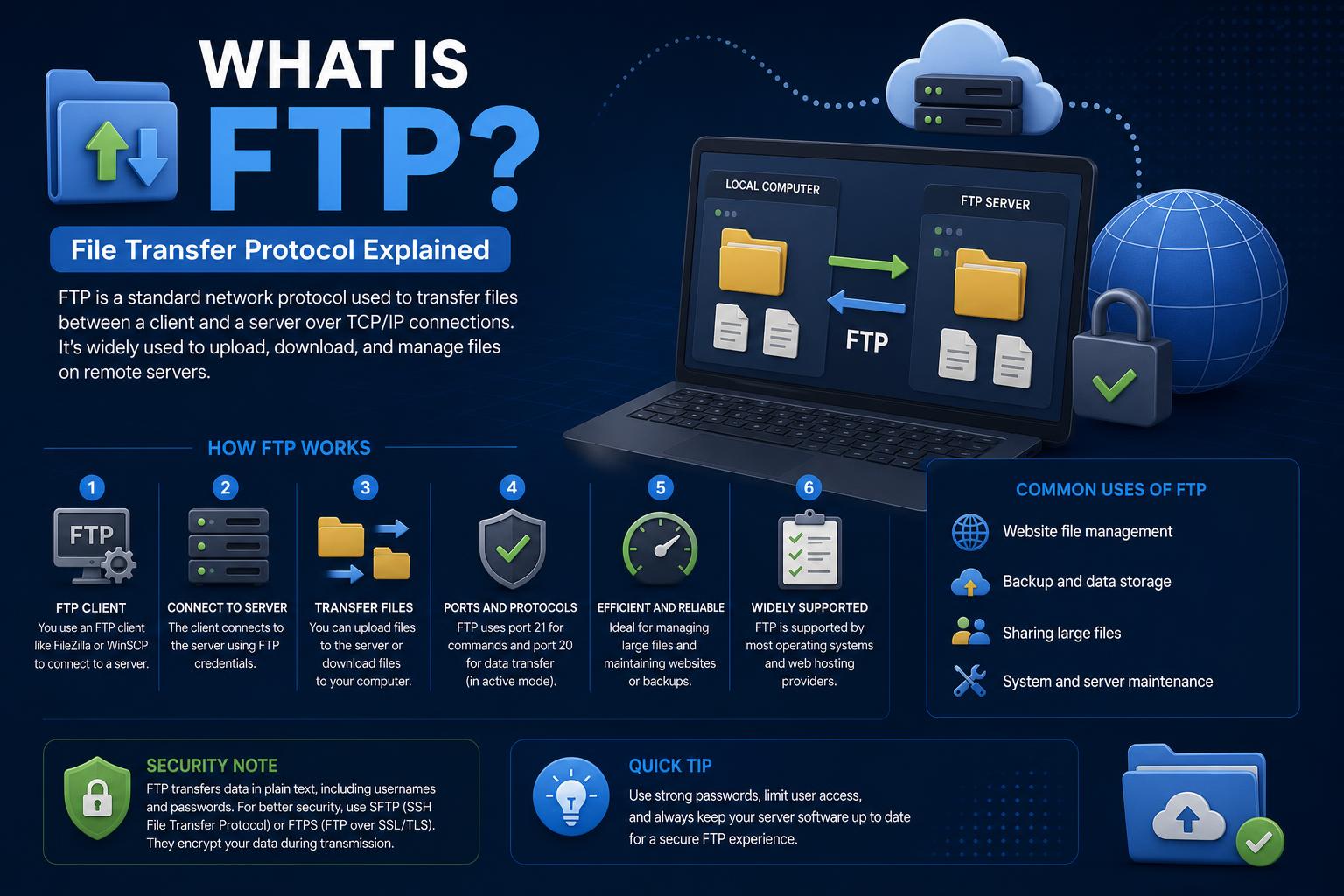
- FTP (File Transfer Protocol) enables client-server file exchanges on networks but lacks modern security features.
- The protocol relies on separate control and data channels using TCP, with clear differences from SFTP/FTPS.
- Security limitations and collaboration hurdles make cloud or managed file transfer solutions superior for businesses.
Moving files between computers has been critical since the early days of networking, and FTP, or File Transfer Protocol, is one of the foundational technologies that made those transfers possible. While it might sound technical, FTP underpins a huge chunk of how users, IT pros, and businesses historically exchanged data, ran web servers, and handled automation. But is FTP still relevant today? Is it secure? And what makes it tick under the hood? Let’s break it all down.
Over the past few decades, FTP has been both a workhorse and a pitfall—powerful for moving data, but riddled with security pitfalls and obsolescence issues. In this guide, we’ll give you an insider’s view of FTP: what it is, its technical nuts and bolts, how it’s used, its security failings, and how it measures up against modern alternatives. Whether you’re a digital newbie handling more files at work, a seasoned sysadmin, or just someone curious about ‘ftp://’ links, get ready for a thorough (but never dry!) tour of FTP.
What is FTP? The Basics in Plain English
FTP—short for File Transfer Protocol—is a standard method for moving files between computers using a client-server model on a TCP/IP network. FTP was first laid out in an MIT whitepaper all the way back in 1971. Since then, it’s become the backbone for everything from uploading web pages to sharing public software.
In practical terms, FTP lets you:
- Transfer files to and from your website or remote servers
- Allow users to download datasets, patches, or other resources
- Automate repetitive data backups or batch uploads and downloads
- Share files on local area networks and the internet
Still, for all its power, FTP lacks encryption and auditing—meaning anyone eavesdropping on the network can potentially see what’s being transferred, including login credentials.
How Does FTP Work? Step by Step
The FTP process involves a client (your computer or an application) connecting to an FTP server over the internet or a local network, typically via specialized software called an FTP client. You can, however, use command-line tools or even (historically) certain web browsers, though browser support is now largely dropped.
Here’s an overview of FTP in action:
- Connection Establishment: You start with an FTP client (such as FileZilla, WinSCP, or command-line ftp), and initiate a connection to the target server. The server might ask you for a username and password, or let you in anonymously if configured to do so.
- Dual Channel Setup: FTP operates over two distinct TCP connections—a control channel on port 21 (for sending commands and receiving responses), and a data channel (commonly port 20 in active mode, or a random port in passive mode) for the actual file transfers.
- File and Directory Operations: Once you’re in, you can navigate server directories (using ls, cd, or GUI equivalents), upload files (put), download files (get or mget for multiples), or even rename and delete files if permissions allow.
- Session Termination: When finished, the connection closes formally, ensuring all resources are cleared and files finish transferring cleanly.
This unique split between command (control) communication and file (data) transfer is why FTP can trip up firewalls and confuse modern network monitoring tools—leading to plenty of troubleshooting headaches.
FTP Under the Hood: Protocol Mechanics and Data Types
To understand why FTP is both flexible and finicky, you need to know its data types and modes. FTP can transmit a wide variety of files and supports several data representations:
- ASCII: For plain text or source code; automatically adapts end-of-line characters between platforms.
- Image (Binary): Raw byte-for-byte transfers for binaries, images, compressed files, etc.
- EBCDIC: Legacy encoding for mainframe text transfers.
- Local: Rarely used, for custom byte formatting (older minicomputer/mainframe systems).
Beyond the data type, FTP supports three transfer modes:
- Stream Mode: Most common; files sent as a continuous stream, managed by TCP.
- Block Mode: Breaks data into blocks for record-oriented files.
- Compressed Mode: Adds basic run-length encoding to save bandwidth—a nod to dialup-era limitations.
Every session is peppered with numeric replies from the server, like 200 (“OK”) or 530 (“Not logged in”), letting the client know what’s going on at each step.
Active vs. Passive Mode: Navigating Network Hurdles
One of the biggest headaches with FTP is firewalls and NAT (Network Address Translation)—which makes the distinction between active mode and passive mode crucial.
- Active Mode (default): Your client opens a control channel to the server (port 21). Then, the server connects back to your client from port 20 to a random port on your end for the data channel. This can trigger firewall issues, since many setups block incoming connections from the internet.
- Passive Mode (PASV): The client asks the server to open a random high port and waits for the client to initiate both control and data connections. Most modern clients use passive mode by default since it plays nicer with firewalls.
This control/data split is at the heart of why FTP transfers can be so tricky to configure in secured network environments. Some modern solutions actively rewrite or manage FTP traffic (application gateways) to handle this complexity.
FTP User Authentication: Anonymous vs. Password-Protected
FTP sessions can be totally anonymous or password-restricted—depending on the server configuration.
- Anonymous FTP: Common for public downloads (mirrors, patches, software). Anyone can connect using “anonymous” as the username, usually with their email as a password (not validated).
- Password-Protected FTP: Required for most internal, private, or sensitive file exchanges. Permissions are strictly governed, and you can often read/write/modify files depending on your access level.
One massive weakness of classic FTP is that both usernames and passwords are sent in clear text across the network, with zero encryption or hashing. This makes even a basic network “sniffer” a huge security risk for unprotected FTP sessions—a topic we’ll revisit shortly.
FTP Clients: Tools, Features, and Changing Support
To access FTP servers, users rely on client software, which can be command-line tools, graphical interfaces, or embedded in other apps. Popular free/open-source options include FileZilla and WinSCP. Many HTML editors (for basic web uploads), file managers, and even some operating systems have basic FTP capabilities built-in.
However, support for FTP in browsers has largely disappeared. Chrome, Firefox, and Edge have fully removed FTP support due to its security issues and the rise of SFTP/FTPS. Some legacy browsers or Linux file managers still provide FTP access, but these are fading from use.
Most FTP clients let you:
- Connect to servers, authenticate, and browse directories
- Upload or download files with granular control
- Switch between active and passive modes
- Resume interrupted transfers (if supported)
- Automate tasks via command line, scripting, or bulk operations
FTP Server Setup and Port Configuration
Running an FTP server involves more than just installing software—you need to handle port configuration, user management, and security settings. Here’s what usually goes into configuring an FTP server:
- Choose and configure your FTP server software (examples: vsftpd, ProFTPD on Linux; FileZilla Server or IIS on Windows)
- Modify default port settings—typically TCP 21 for control, 20 for data. Servers can be reconfigured to use custom ports for security or compatibility.
- Update user authentication and permission controls to prevent unwanted access or accidental data loss.
- Restart the FTP service and communicate new settings to users, who may need to connect via different ports or addresses.
Special corporate environments often disable FTP or whitelist custom ports and IPs to reduce attack surfaces.
FTP Commands and Server Replies
FTP clients talk to servers using a standard set of textual commands (USER, PASS, GET, PUT, LIST, etc.), and servers respond using three-digit codes to indicate results. Some of the most common commands and responses include:
- USER & PASS: Authenticate with your credentials
- LIST/LS: List current directory contents
- CD: Change directories
- GET/PUT: Download/upload files
Typical reply codes:
- 200: Successfully executed
- 221: Connection closing
- 331: Username accepted; password needed
- 530: Not logged in (authentication failed)
- 551: Requested action aborted (unknown page type)
FTP Security Woes: The Weakest Link in File Transfers
This is where things get dicey—FTP was designed long before hacking and cybercrime became daily headline news. It simply does not secure anything it transmits.
Major security risks:
- Everything (including login and password) is transmitted in plain text, making it trivial for attackers with access to your network to sniff out credentials
- No encryption or hashing for data or authentication—nothing is hidden from prying eyes
- Classic “brute force,” “bounce,” spoofing, and DDoS attacks are possible due to weak authentication and session management
- Error-prone firewall navigation, making servers hard to defend; attack surfaces grow if ports are not locked down
FTP’s lack of any meaningful access logging or advanced permission control compounds the issue, especially as businesses demand more granular audit trails.
The U.S. FBI, among other authorities, has explicitly warned about FTP’s vulnerabilities, strongly recommending against its use in scenarios involving confidential or sensitive data—including healthcare, banking, and critical infrastructure.
Modern Alternatives: FTPS, SFTP, and Beyond
If you’re transferring anything private—or simply don’t want to leave the door wide open—there are modern, secure alternatives.
FTPS (FTP Secure)
FTPS is an extension of FTP that adds SSL/TLS encryption, providing a secure communication channel for both commands and data. It uses the same basic command set, meaning migration from FTP to FTPS is relatively smooth, but it still uses multiple channels and is thus susceptible to the same port and firewall headaches.
- Explicit FTPS: Starts as pure FTP, then upgrades to encrypted (TLS) connection upon request.
- Implicit FTPS: Requires encryption from the initial handshake; uses different ports.
SFTP (SSH File Transfer Protocol)
SFTP is a completely separate protocol that operates over SSH (typically port 22), encrypting everything—credentials, commands, data—in a single, easily firewalled channel. SFTP is widely considered the default for secure file transfers today, providing strong encryption and easier compatibility with modern network protections. It’s important not to confuse SFTP (SSH file transfers) with “Simple File Transfer Protocol,” a failed, older protocol also sometimes called SFTP.
- One port, as opposed to FTP’s dual-channel approach
- Works across Windows, Linux, Unix, and Mac systems
- No need to manually manage complex permission or data type handling
TFTP (Trivial File Transfer Protocol)
For ultra-simple, no-fuss, and unsecured transfers (like device bootstrapping), TFTP lives on but isn’t for regular users.
Managed File Transfer (MFT) and Cloud Solutions
Given modern business demands, cloud-based file transfer and Managed File Transfer (MFT) solutions now lead the pack. These platforms combine secure data transfer, compliance checks, version control, and easy scalability for distributed teams. Examples include Box, Dropbox Business, Google Drive, and various enterprise-grade MFT services.
- Security is baked in—end-to-end file encryption, activity logging, real-time collaboration, and granular permission controls
- Simple web interfaces and mobile access
- Integration with hundreds of third-party applications (automation, productivity, workflow management)
For most businesses, especially those in regulated sectors or with distributed workforces, cloud and MFT options are a quantum leap in ease, security, and compliance compared to FTP.
Issues When Using FTP in the Real World
FTP isn’t all bad—it’s fast, nearly universal, and works across plenty of platforms. But when used today, it will challenge your IT department and slow your teams down in subtle and not-so-subtle ways.
Outdated Technology and Workflow Friction
- FTP requires third-party clients that may introduce compatibility headaches and workflow friction
- Firewall issues are frequent because of FTP’s two-connection model; your session might work one day and mysteriously break the next due to network policy changes
- Managing and scaling FTP infrastructure requires constant IT attention—installation, hardware upgrades, software patches, license tracking, and user support
Productivity, Collaboration, and Versioning Headaches
- No built-in version control or real-time collaboration: Teams must manually track file versions, risking errors, duplication, and lost data
- Manual intervention is needed to compare/upload/download files among teams
- Lack of a central dashboard for activity, permission, or audit means lost accountability and transparency
FTP in Practice: Use Cases and Transition Decisions
Despite the risks, FTP is still used in various corners of the digital world. Here are places you’ll still find FTP:
- Automated backups from legacy systems
- Mirroring and distributing non-sensitive software and open datasets
- Internal networks with rigid security controls and no outside exposure
- Bootstrapping and firmware upgrades for hardware that doesn’t support newer protocols
When dealing with regulated data, customer information, or intellectual property, replacing FTP with SFTP, FTPS, or cloud/MFT solutions becomes critical.
The Verdict: FTP vs. SFTP/FTPS/Cloud
| FTP | SFTP |
|---|---|
| No encryption (plain text) | Strong encryption (over SSH) |
| Uses port 21 (control) and 20 (data) | Uses port 22 |
| Separate control and data channels | Single, secure connection |
| Credentials exposed | Credentials protected |
| Challenging firewall/NAT traversal | Simple firewall compatibility |
| No collaboration/versioning | Supports secure, auditable operations |
The Evolution of File Transfer in the Cloud Era
The world has moved to the cloud for a reason: organizations need scalable, secure, and user-friendly file sharing that FTP simply can’t provide. Platforms such as Box, Dropbox, and Google Drive offer:
- File and platform-agnostic access from any device or location
- Robust permission and access controls (including multi-factor authentication)
- Automated backup and easy sharing across apps and teams
- Encryption of data at rest and in transit
- Continuous monitoring for malicious behavior and security breaches
- Easy integration with SaaS and workflow automation
Although FTP remains part of the history of file transfer, modern cloud and MFT tools enable teams to collaborate securely, reduce data breaches, and streamline IT operations more effectively.
FTP, Compliance, and Enterprise Security
Compliance requirements (GDPR, HIPAA, PCI DSS, etc.) strongly discourage the use of insecure protocols such as FTP for any data that could be considered sensitive. Most organizations face hefty penalties and reputational loss for data breaches. Secure alternatives make it easier to provide:
- Detailed audit logs
- Granular permission management
- Centralized reporting and real-time monitoring
FTP, by contrast, falls far short in every compliance-relevant category.
The Future: When to Migrate from FTP
Here’s when you know it’s time to say goodbye to FTP:
- Your data must comply with strict regulatory or contractual standards.
- Users are remote, work on multiple devices, or require mobile access.
- Your business needs collaboration, workflow integration, or version control.
- You’re spending too much time/effort on troubleshooting FTP errors or scaling infrastructure.
- You need detailed usage analytics and audit logs.
Upgrading to SFTP, FTPS, or cloud solutions doesn’t just boost security—it also helps with productivity, scalability, and integration with modern business tools.
Common FTP Q&A
What is FTP in simple terms?
FTP is a way to move files between a user’s computer and a remote server. It requires a client to connect, log in (sometimes anonymously), and provides commands to upload/download files.
How do you access FTP?
Via dedicated FTP client apps, command-line utilities, or embedded tools in some operating systems. Most web browsers no longer support FTP links.
Is FTP secure?
No—FTP sends everything across the network unencrypted. Anyone on the network can see files and passwords unless you use FTPS or SFTP.
Why use FTP at all?
Traditions, legacy compatibility, simple automation, or public file hosting that doesn’t require security. For anything sensitive, always choose a secure method.
Although FTP has played a historic role, more secure and scalable alternatives like FTPS, SFTP, and cloud-based collaboration tools offer better solutions for almost every scenario—making it easier to share, protect, and manage your files no matter where you are.